A website audit quickly gives you a lot of numbers. A score of 62, three red boxes, a list of 40 recommendations. It is easy to get stuck, because it is not clear what actually matters for your business.
Here I go through what an audit should measure, how to read the result, and why two free tools can give you two different answers on the same day. Every number and threshold is linked to its source, and the sources are collected at the bottom.
In short
- A good audit measures five things: speed, visibility in Google, security, accessibility and whether the site gets visitors to act. The first four can be measured automatically. The last one needs a person to look at the site.
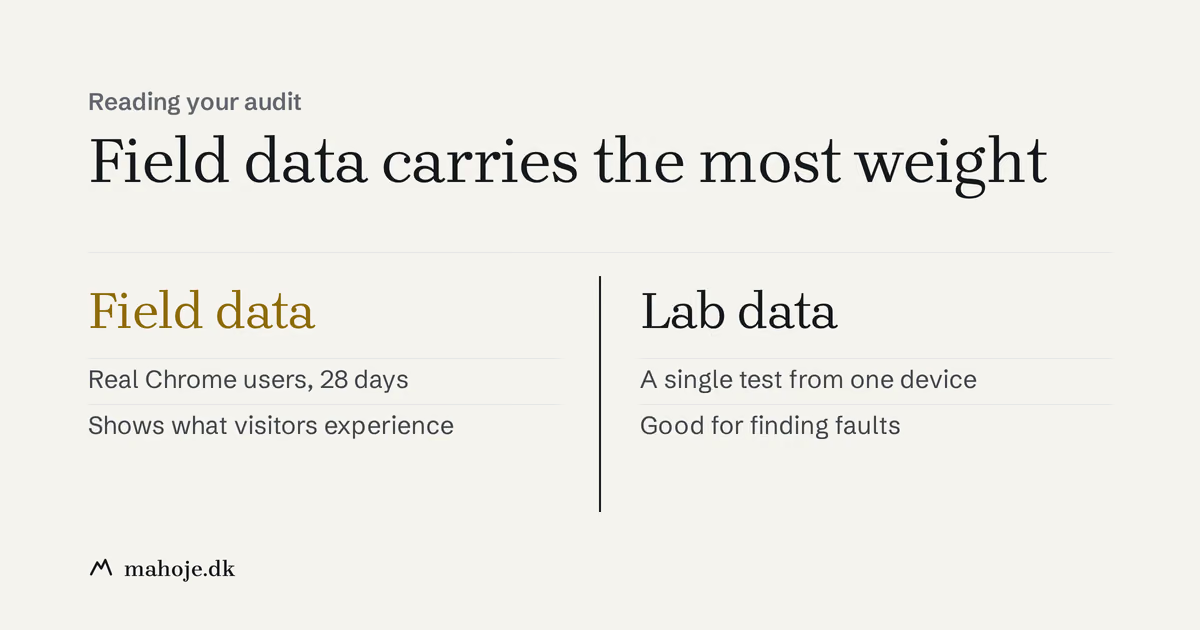
- Speed has two kinds of numbers. Field data comes from real visitors over the last 28 days. Lab data is a single test from a single machine. Google recommends prioritising by field data (web.dev).
- Google's thresholds are 2.5 seconds for LCP, 200 milliseconds for INP and 0.1 for CLS, measured at the 75th percentile (web.dev).
- Different scores are normal. Test measurements vary with the network, the machine and content that changes from run to run (Chrome for Developers).
- Read for action, not for numbers. Find the few findings that affect whether a customer can find you, trust you and contact you. The rest can wait.
What a website audit should measure
Speed: field and lab data
Google groups its most important measures of user experience under the name Core Web Vitals. There are three, and web.dev sets a threshold for each:
- LCP (Largest Contentful Paint): How quickly the largest element, typically an image or a heading, is shown. Good is 2.5 seconds or less.
- INP (Interaction to Next Paint): How quickly the page responds when you click or tap. Good is 200 milliseconds or less.
- CLS (Cumulative Layout Shift): How much the content jumps around while the page loads. Good is 0.1 or less.
The thresholds should be met at the 75th percentile, that is for at least three out of four visits, and measured separately on mobile and desktop (web.dev). PageSpeed Insights also has a middle category: LCP between 2.5 and 4 seconds, INP between 200 and 500 milliseconds and CLS between 0.1 and 0.25 "need improvement". Above that is poor.
The most important thing to understand is that there are two kinds of numbers:
- Field data comes from real Chrome users, via the Chrome User Experience Report (CrUX). PageSpeed Insights shows figures for the last 28 days.
- Lab data is a test measurement that a tool such as Lighthouse runs on one device, on one network and from one location (web.dev).
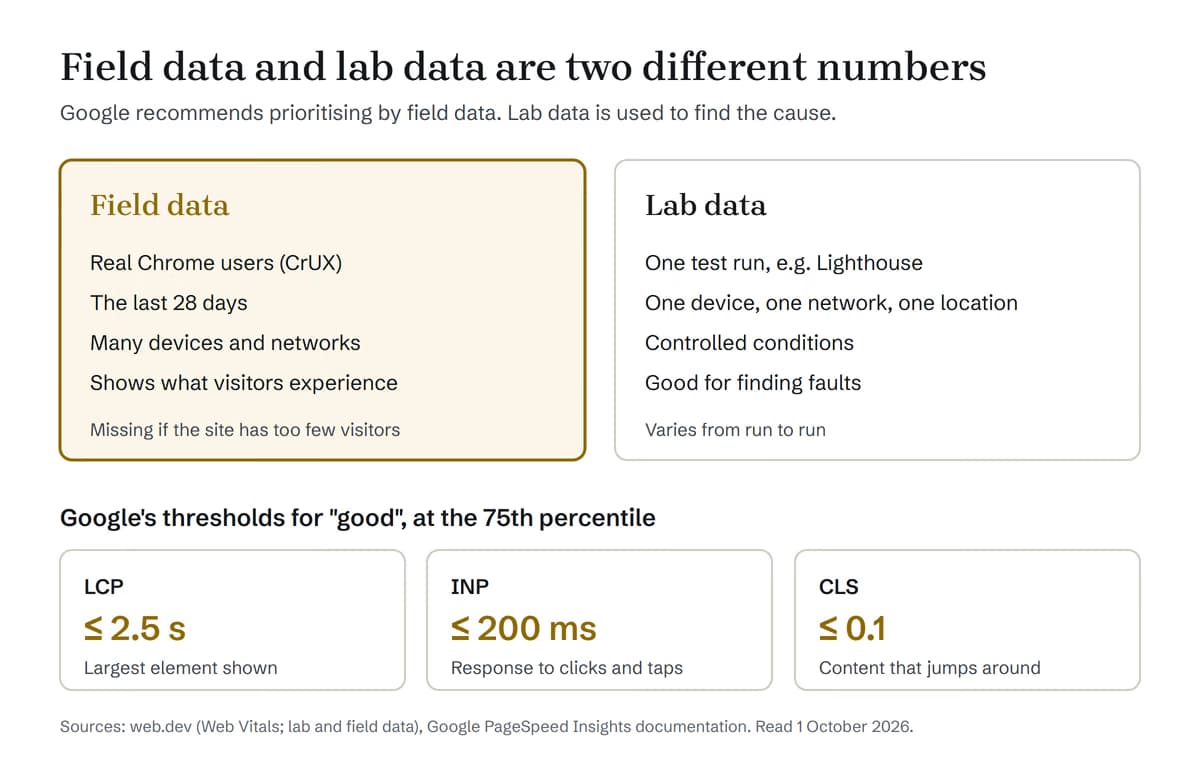
Google is clear about what carries the most weight: field data is what you should prioritise by, because it shows what real users experience (web.dev). Lab data, on the other hand, is good for finding the cause of a problem, because it is measured under controlled conditions (PageSpeed Insights).
If your site does not have enough visitors, PageSpeed Insights shows no field data, because there has to be sufficient data in CrUX (PageSpeed Insights). Then the test measurement is all you have. In my experience that is the situation for many smaller business sites, and that is perfectly fine, as long as you know the number is a test and not your customers' experience.
If you want to go deeper into speed itself, I have written a guide to WordPress speed optimisation.
Visibility in Google
The part of an audit that deals with Google is often called on-page SEO. It checks whether the page is written so that Google can understand it. The most important points are in Google's own SEO Starter Guide:
- The page title should be unique to the page, clear and concise, and describe the content accurately.
- The description (meta description) should be short, unique to each page and contain the most important points.
- Images should have good alt text, which Google calls "quite important".
- Are you there at all? Search for
site:yourdomain.comin Google. If you see results from your site, it is in Google's index.
Google also recommends setting up Search Console, which shows how the site is doing in search (Google Search Central). An audit from the outside can see how the site is built. Search Console shows what actually happens in Google.
Speed and visibility are connected, but less than many people think. Google writes that Core Web Vitals are used by its ranking systems, but also that good results in Search Console or other tools do not guarantee a top position, and that Google always tries to show the most relevant content, even when the page experience is below par (Google Search Central). Content comes first.
I have collected the technical side of SEO in a technical SEO checklist.
Security: HTTPS and headers
From the outside, an audit can see two things: whether the connection is encrypted, and whether the server sends the so-called security headers. These are small instructions to the browser. One example is Strict-Transport-Security (HSTS), which tells the browser that the site may only be opened over HTTPS, and that future attempts over plain HTTP should automatically be upgraded to HTTPS (MDN).
Mozilla's HTTP Observatory tests, among others, the headers Content-Security-Policy, Strict-Transport-Security, X-Frame-Options, X-Content-Type-Options and Referrer-Policy (MDN Observatory FAQ). Google also asks in its own page experience checklist whether the pages are served securely (Google Search Central).
But read Mozilla's own caveat. Observatory does not test for outdated software versions, vulnerable plugins in a CMS or poorly stored passwords, and Mozilla writes that these are just as important as what the tool does test (MDN Observatory FAQ). A good security grade means the door is locked, not that the house is safe. I cover the threats a WordPress site faces in WordPress security in 2026.
Accessibility
Accessibility is about everyone being able to use the site, including with a keyboard, a screen reader or enlarged text. For webshops selling to consumers it is a legal requirement, which I have gone through in the post on the European Accessibility Act in Denmark.
Lighthouse gives an accessibility score, which is a weighted average of a number of automated checks. Each check is either passed or failed, and there are no points for partially passing: if one button lacks a name, the whole check scores zero (Chrome for Developers). That explains why one small fault can pull the score down noticeably.
The W3C is clear: tools cannot determine whether a site is accessible, only help with it, and human judgement is required (W3C). A high score is a good sign, not proof.
Does the site get visitors to act?
This is the part most automated audits skip, and in my view the most important for a business. A fast, secure and well-described site wins no customers if the visitor does not know what the next step is. I look for four things:
- A clear call to action. Can you see within a few seconds what you offer, and what you would like the visitor to do: call, write or order?
- A clickable phone number. A number written as a
tel:link makes a mobile phone dial it, and on a computer it can open a program that can make the call (MDN). A number that is only plain text, the customer has to copy themselves. - Forms that work for everyone. Every field should have a label that is tied to the field. That gives a larger area to click and lets screen readers read the field aloud (W3C). Also send yourself a test message and see whether it arrives. More on that in the contact form guide.
- Trust signals. Can you see who is behind the site? In its guidance on helpful content, Google asks whether it is clear to visitors who wrote the content, and writes that trust is the most important of the four parts of E-E-A-T (Google Search Central). For a local business, in my judgement, that means name, address, company registration number (the CVR number in Denmark), real photos and preferably reviews.
If the site gets traffic but no enquiries, this is typically where the problem lies. I have written more about that in Website not getting customers?, and if it is the structure itself that is lacking, in how to structure a website.
Why free tools give different scores
This is the question I get most often when someone has run their site through two tools. There are three main reasons.
They measure different things. One tool shows field data from real visitors, another shows a test measurement. The numbers cannot be compared directly. Real users, for example, often have parts of the site cached in the browser from an earlier visit, get different content in A/B tests and click at moments a test cannot predict (web.dev).
Test measurements vary. Even the same tool gives different numbers from run to run. Google lists causes including A/B tests or changing ads, changes in how traffic is routed across the internet, testing on different devices, browser extensions and antivirus software (Chrome for Developers). PageSpeed Insights also mentions the network, the machine's performance and other programs competing for resources.
The score is a weighting. Lighthouse's performance score is not a measurement in itself, but a weighting of five metrics: Total Blocking Time counts for 30 per cent, LCP and CLS 25 per cent each, and First Contentful Paint and Speed Index 10 per cent each (Chrome for Developers). Mobile and desktop are also measured separately. In PageSpeed Insights, the mobile test emulates a mid-range phone on a mobile network, while the desktop test uses a wired connection (PageSpeed Insights), so the same page can get two very different scores.
That does not mean the numbers are worthless. It means you should compare the same measurement over time, with the same tool, and not one tool with another.
How to read the result without drowning in numbers
I read an audit in four steps myself. The order is my own, but each step builds on the sources above.
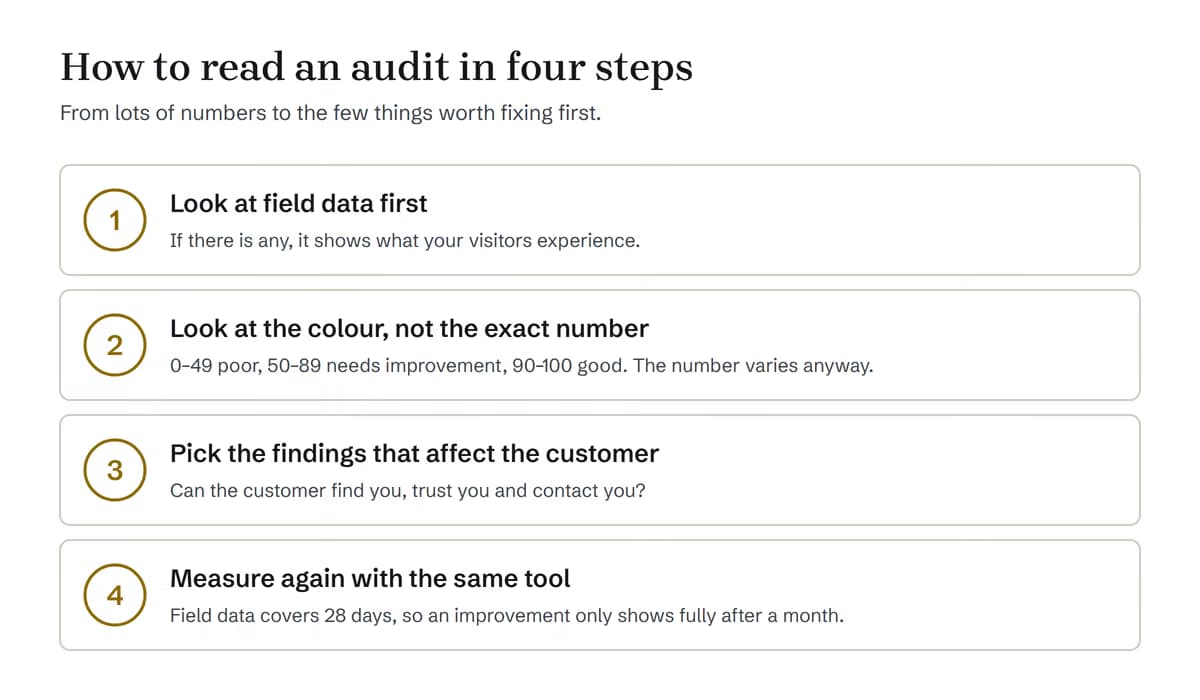
- Look at field data first. If there is field data, that is what shows your visitors' experience. The site passes Google's Core Web Vitals assessment when all three metrics are good at the 75th percentile (PageSpeed Insights). If it does, speed is in my judgement not your biggest problem, whatever the test score says.
- Look at the colour, not the exact number. Lighthouse divides the score into three bands: 0–49 is poor, 50–89 needs improvement, and 90–100 is good (Chrome for Developers). Whether you have 84 or 87 does not matter, because the number varies anyway.
- Pick the findings that affect the customer. Ask of each finding: does it mean a customer cannot find me, does not trust me or cannot contact me? A missing page title, a form that does not work or a page that does not show up in Google comes before a recommendation about a particular image format.
- Measure again after every change. Use the same tool and the same setting, and remember that field data covers 28 days (PageSpeed Insights). An improvement today only shows fully in the field data a month from now.
That is also why my own free website check (in Danish) does not stop at a score. It measures speed, SEO, security and accessibility and ends with the three things you should do first, in plain language without jargon.
What do you do afterwards?
Once you have your three to five most important findings, the question is whether you can fix them yourself.
You can often do this yourself
- Page titles and descriptions. Most systems, including WordPress with an SEO plugin, have fields for them on every page.
- Alt text for images. Write briefly what the image shows.
- Phone number and contact details. Make the number clickable, and make sure name, address and company registration number are somewhere people can find them.
- A clear call to action. Write what the visitor should do, and put the same call to action at the top and bottom of the page.
- Test your own form. Send a message and see whether it arrives.
This usually needs a developer
- Security headers and HTTPS setup. They are set on the server or with the hosting provider, and a wrong setup can make parts of the site stop working.
- Slow loading and poor INP. The cause often lies in the theme, in heavy plugins or in third-party scripts, and it has to be found before it can be fixed.
- Accessibility faults in the theme. Missing focus indicators or buttons without names usually sit in the code, not in your content.
- Faults that keep coming back. If the same problem turns up after every update, nobody has responsibility for the site.
That last point is where many owner-managed businesses get stuck. Nobody has time to keep an eye on the site, and the audit is run once and forgotten. That is the kind of thing I take care of as a technical partner, and you can see what it costs before you write to me.
Frequently asked questions
What is a website audit?
A website audit is a review of how well your site works for visitors and for Google. A good audit covers speed, visibility in Google, security, accessibility and whether the site gets visitors to get in touch or buy.
What are good values for speed?
Google recommends that the largest element on the page is shown within 2.5 seconds (LCP), that the page responds to a click within 200 milliseconds (INP), and that the layout shifts by no more than a value of 0.1 (CLS). The values should be met for 75 per cent of visits, measured separately on mobile and desktop.
Why do I get different scores in different tools?
Because the tools measure different things in different ways. Some use data from real visitors over 28 days, others run a single test from a single machine. Even the same test varies, because the network, the machine and things like ads or A/B tests change from run to run.
What does it mean if there is no field data for my site?
It means there is not enough data from real Chrome users for Google to show it. Then the test measurement is all you have to go on. It is good for finding faults, but it does not tell you exactly what your visitors experience.
Is a score of 100 the goal?
No. Google itself says that good results in Search Console or other tools do not guarantee that a page ranks at the top, and that Google shows the most relevant content even if the experience is not perfect. Use the score to find faults, not as a goal in itself.
Can I fix what the audit finds myself?
Often some of it. Page titles, descriptions, image alt text, a clickable phone number and clear contact details are things most people can fix in their own system. Security headers, slow loading and faults in the theme or plugins usually need a developer.
Sources
All sources read 1 October 2026.
- web.dev (Google): Web Vitals: web.dev/articles/vitals
- web.dev (Google): Why lab and field data can be different (and what to do about it): web.dev/articles/lab-and-field-data-differences
- Google for Developers: About PageSpeed Insights: developers.google.com/speed/docs/insights/v5/about
- Chrome for Developers: Lighthouse performance scoring: developer.chrome.com
- Chrome for Developers: Lighthouse accessibility scoring: developer.chrome.com
- Google Search Central: SEO Starter Guide: developers.google.com
- Google Search Central: Understanding page experience in Google Search results: developers.google.com
- Google Search Central: Creating helpful, reliable, people-first content: developers.google.com
- MDN (Mozilla): HTTP Observatory FAQ: developer.mozilla.org
- MDN (Mozilla): Strict-Transport-Security: developer.mozilla.org
- MDN (Mozilla): The Anchor element,
tel:links: developer.mozilla.org - W3C: Selecting Web Accessibility Evaluation Tools: w3.org
- W3C: Forms Tutorial, Labeling Controls: w3.org