Search Console is Google's own tool for showing you how your website performs in search results. Even so, my experience is that many owners of small businesses have either never set it up, or set it up once and have not looked since, because the screen is full of graphs and jargon.
Here I go through how to get started, which reports are worth knowing, how to find the searches where a small effort can bring more visits, and how to give a developer access without sharing your login. Every fact is linked to Google's own documentation and collected at the bottom. I use the English menu names from Google's help pages.
In short
- Search Console is free and shows how your site is doing in Google. You do not need it to appear in search results, but it helps you understand how Google sees your site (Google).
- Choose a Domain property if you can. It covers the whole domain and is verified with a DNS record (Google).
- Four numbers in Performance: clicks, impressions, CTR and average position. Data is kept for 16 months (Google Search Central).
- Find searches close to the top and pages that are shown many times but get few clicks.
- Give access, do not share your login. Add the developer as a user with restricted or full permission (Google).
What is Google Search Console?
Google itself describes Search Console as a free service that helps you monitor, maintain and troubleshoot your site's presence in Google's search results. You can see which searches show your site, how many people click, and whether Google can index your pages. You are also notified when Google finds problems with, for example, indexing or spam.
It is not an analytics tool like Google Analytics or Plausible. Those measure what people do on your site. Search Console shows what happens in Google before they click.
You do not need to sit with it every day. Google writes that you get an email if new problems turn up, and suggests checking about once a month, or when you have changed the content on the site.
How to set up Search Console
With a Google account, you add your website as a property and prove that you own it. It does not affect your site in search results, and it does no harm if you do not finish on the first attempt (Google).
Domain property or URL prefix?
The difference is explained in Google's guidance:
- Domain property, for example
example.com: covers all subdomains and protocols, so bothhttp://andhttps://, with and withoutwww, and for exampleshop.example.com. It can only be verified with a DNS record at your domain provider. - URL prefix property, for example
https://www.example.com/: only covers addresses that begin exactly like that. In return, it can be verified in several ways.
If you or your developer can get to the domain's DNS, I recommend the Domain property, so you see all traffic in one place. URL prefix is the right choice when you cannot get to the DNS, or only want to see part of the site, for example /en/.
Verify that you own the site
Google offers several ways to verify ownership:
- Domain name provider (DNS): You get a TXT record from Search Console and add it at your domain provider. It is the only method for a Domain property. It can take two to three days before the provider shows the record, so try again the next day if it fails.
- HTML file or HTML tag: You upload a small file to the root of the site or insert a meta tag in the code.
- Google Analytics or Google Tag Manager: if the site already uses them and you have access to the account.
If you use WordPress, Google itself mentions the Site Kit plugin, which can handle verification for you and is the only plugin Google officially stands behind.
Verification only lasts as long as Google can find your file, tag or DNS record. If you remove it, you lose access. In my experience that typically happens when the site is moved or gets a new theme, and the file or tag is not carried over. Data is collected from the moment the property is added, but it takes a few days before you see anything.
The reports that matter
For an ordinary business site, these are the six reports I look at myself.
Performance
The Performance report is the one you will use most. It shows four numbers:
- Clicks: how many times someone has clicked through to your site from Google's search results.
- Impressions: how many times your site has been shown in search results. Google counts an impression when your result is on the results page the user is shown, even if the user has not scrolled down to it (Google).
- CTR (click-through rate): clicks divided by impressions.
- Average position: the average of the top position your site has had in the results.
Below the graph, you can split the numbers into tabs: queries, pages, countries, devices, search appearance and dates. By default the report shows the last three months, but you can go 16 months back. If you want to compare over several years, you have to export the numbers yourself. Data arrives with a delay of about two days.
Three caveats before you read the numbers:
- The table shows at most 1,000 rows. Rare searches may therefore be missing from the table but still count in the total above the graph (Google).
- Rare searches are hidden. Google leaves out searches that only a few people have made, to protect users' privacy. They count in the total but are not shown as rows (Google Search Central).
- If you search yourself, you may see something else. Google writes that search results depend on time, place, device and the searcher's history (Google).
Page indexing
The Page indexing report shows which of your pages Google has indexed, and why others are not. It is perfectly normal for some pages not to be indexed. Google writes that you cannot expect every address to be indexed, only the canonical pages. An address that redirects (Page with redirect), for example, should not be included.
Keep an eye on whether your important pages are indexed: the home page, the service pages and the contact page. If your site has fewer than 500 pages, Google writes that a search for site:your-domain.com in Google is probably enough to see whether you are there.
If an important page is missing, paste its address into the search field at the top of Search Console. That opens URL Inspection, which shows why the page is not included. Once you have fixed the error, you can click Request indexing. When you fix an error that affects many pages, you click Validate fix in the report instead. It typically takes up to about two weeks (Google).
I have collected the technical side of indexing, such as robots.txt, noindex and canonical, in my technical SEO checklist.
Sitemaps
A sitemap is a file that tells Google which pages exist on your site. In the Sitemaps report you enter the address of the file and click Submit. In other words, you tell Google where the file is.
According to Google, a site with about 500 pages or fewer, where all pages can be reached via links from the home page, probably does not need a sitemap. If you have one, the important thing is that the status says Success.
Core Web Vitals
The Core Web Vitals report shows how fast and stable your site is for real visitors, split into mobile and desktop and into the groups Good, Needs improvement and Poor. It is based on field data from Chrome users and only shows indexed pages.
Many smaller sites get a message that no data is available. That means there is not enough data from real visitors, not that anything is wrong. I have explained what the thresholds are, and how to read field data and test measurements, in the post on website audits.
HTTPS
The HTTPS report shows how many of your indexed addresses use HTTP instead of HTTPS. Ideally there should be none. The report only exists for Domain properties and properties with an HTTPS prefix. The invalid certificate error typically affects the whole site and should be fixed quickly.
Manual actions
The Manual actions report shows whether someone at Google has judged that your pages break Google's spam policies. If that happens, all or part of the site can disappear from search results. If everything is fine, there is a green tick. Check it especially if you have taken over a domain or a site from someone else.
Find searches close to the top
Once the basics are in place, you can use Performance to find more visitors without writing new content. I look for two things.
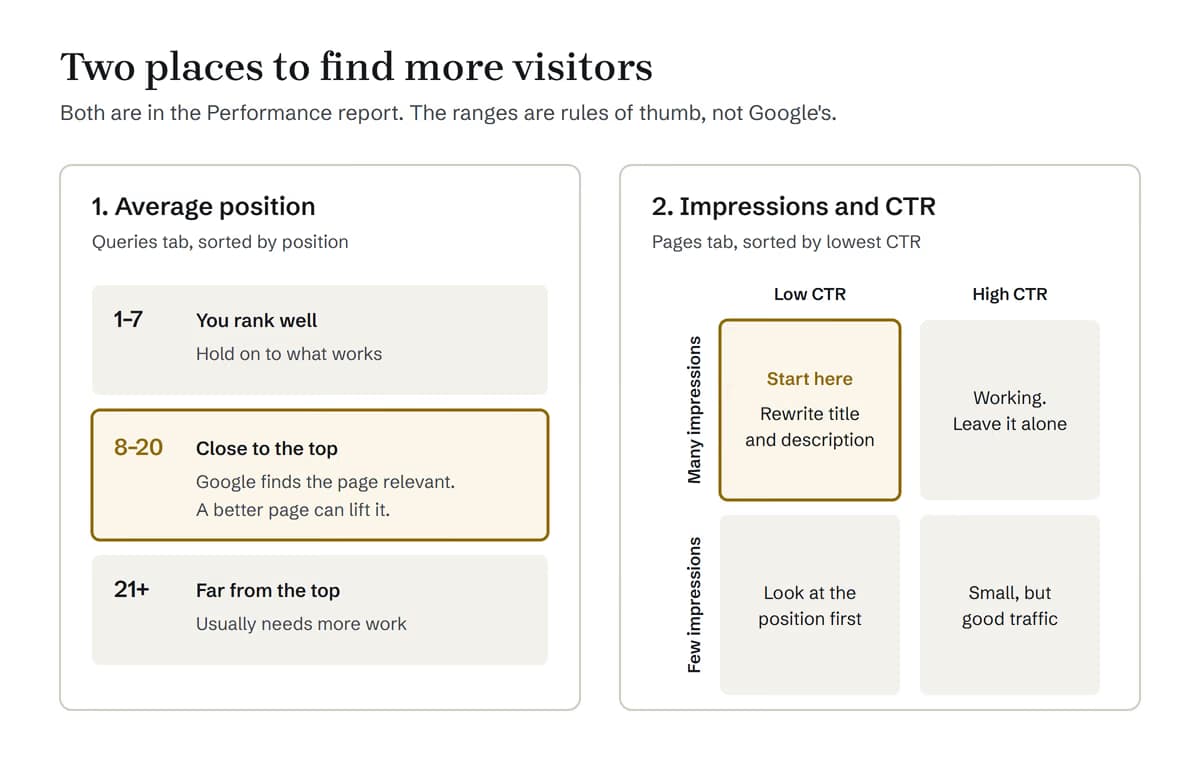
Searches in position 8–20
In the SEO industry, searches where you rank just below the top are called "striking distance". It is not a Google term, and the 8–20 range is my own rule of thumb. The idea is that Google already finds your page relevant, so a better page has a realistic chance of moving up.
How to find them:
- Open Performance, and choose the last three months.
- Click Average position above the graph, so the column shows in the table.
- Choose the Queries tab, and sort the table by position. You can also use the filter icon above the table to hide rows with a position below 8.
- Prioritise the ones with the most impressions. They are the most worth working on.
- Click a search, and switch to the Pages tab. Then you can see which of your pages Google shows (Google).
Then look at the page: Is the search term in the title and heading? Does the page answer the question? Are there sections missing that the pages above you include? I have written about how to assess a search term and the intent behind it in the keyword analysis guide.
A caveat: position is an average across searches, places and devices, and Google itself recommends putting more weight on the trend in impressions and clicks than on position alone. Use position to find the candidates, and measure the result in clicks.
Pages with many impressions and few clicks
The second group is pages that are shown many times but rarely clicked. Google describes the approach itself: choose CTR above the graph, go to the Pages tab, and sort the table by CTR so the lowest are at the top (Google). Then look at the ones with many impressions.
According to Google, a low CTR can mean that people see your page in the results but do not believe it answers their question. Google suggests updating the page's title and description so they match the content better, or adjusting the content to the searches the page is shown for.
Look at CTR together with position. In my experience, a page far down the results rarely gets many clicks whatever the title, so the interesting ones are those with many impressions, a good position and few clicks. Advice on copy that gets people to click and act is in the post on sales copy for your website.
Give a developer access without sharing your login
Sooner or later a web developer, an agency or an SEO consultant will need to look in. Do not share your own Google login. Search Console has a built-in way to give access, and it makes it easy to take the access back.
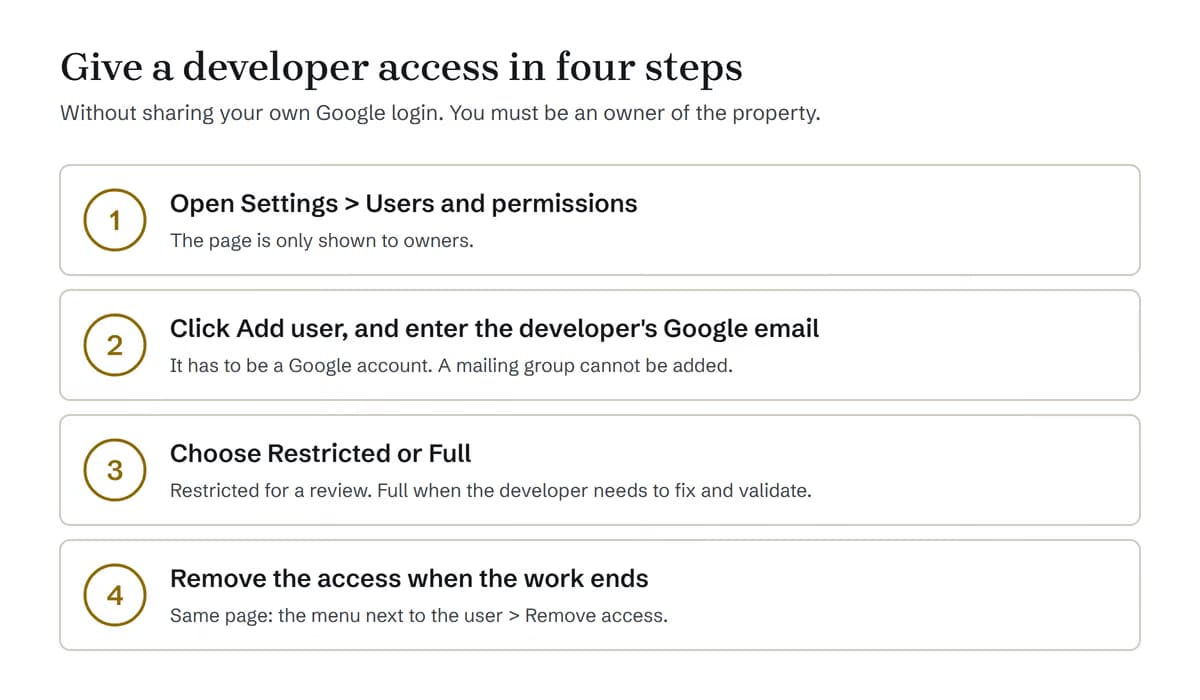
This is how, according to Google's guidance:
- Open the property in Search Console.
- Go to Settings and then Users and permissions. The page is only visible if you are an owner.
- Click Add user, and enter the developer's Google email address. It has to be a valid Google account, and you cannot add a mailing group.
- Choose the permission, and save.
There are three levels:
- Owner: full control, including over who has access. I would only give this level to someone who is to be responsible for the site in the long term.
- Full user: can see all data and take some actions, for example validating fixes and submitting sitemaps.
- Restricted user: can see most data, but cannot, for example, validate fixes or submit sitemaps.
Google's guidance on hiring an SEO recommends that for a first review you only give read access. So I would start with Restricted and only give Full when the developer needs to fix errors and validate the fixes.
When the work ends, you go to the same place, click the menu next to the user and choose Remove access. If the developer has been a verified owner, you also have to remove the file, tag or DNS record they used, otherwise they can verify themselves again. Google shows a list of their unused tokens when you remove the user.
Look through the list of owners at the same time. If you see an owner you do not know, Google writes that your site may have been hacked. Then my post on what to do when WordPress has been hacked is a good place to start.
When should you get help?
Much of what Search Console shows, you can act on yourself: a new title, a better section or a sitemap that needs to be submitted again. Other things need a developer, for example when important pages are not being indexed, when the HTTPS report shows errors, or when Core Web Vitals say Poor.
Search Console shows what Google sees, but not always why. If you want your site measured from the outside, you can run my free website check (in Danish). It measures speed, SEO, security and accessibility and ends with the three things you should do first.
If you would rather have someone else keep the site maintained and fix the errors, you can see my maintenance plans. If you need someone to take responsibility for the whole technical side of the business, read about the technical partner service.
Frequently asked questions
What is Google Search Console?
A free service from Google that shows how your website performs in search results: which searches show the site, how many people click, and whether Google can index your pages. You do not need it to appear in Google, but it helps you understand how Google sees your site.
Should I choose a Domain property or a URL prefix property?
A Domain property covers the whole domain with and without www, http and https and all subdomains, but needs a DNS record with your domain provider. A URL prefix property only covers addresses that begin exactly like the one you enter, but can be verified with, for example, an HTML file. If you can get to your DNS, the Domain property is in my view the best choice.
How long does Search Console keep data?
The Performance report shows data for up to 16 months. You cannot retrieve older data, so export the numbers you want to keep for longer.
What is a good CTR?
There is no single number. CTR depends on how high you rank and what the search result looks like. Use it to find pages with many impressions and few clicks. If CTR is low, Google suggests looking at the page's title and description.
How do I give my developer access to Search Console?
Go to Settings and Users and permissions, click Add user, enter the developer's Google email address and choose Restricted or Full. You have to be an owner yourself. When the work ends, you remove the access in the same place.
How often should I check Search Console?
Not every day. If Google finds new problems, you get an email. Google suggests checking about once a month, and when you have changed content on the site.
Sources
All sources read 1 October 2026.
- Search Console Help: About Search Console: support.google.com
- Google Search Central: Get started with Search Console: developers.google.com
- Search Console Help: Add a website property to Search Console: support.google.com
- Search Console Help: Verify your site ownership: support.google.com
- Search Console Help: Performance report (Search results): support.google.com
- Search Console Help: What are impressions, position, and clicks?: support.google.com
- Search Console Help: Performance report, common tasks and use cases: support.google.com
- Search Console Help: Troubleshooting and data discrepancies: support.google.com
- Google Search Central Blog: A deep dive into Search Console performance data filtering and limits (2022): developers.google.com
- Google Search Central Blog: Introducing the new Search Console (2018), on 16 months of data: developers.google.com
- Google Analytics Help: Queries report, on 16 months and the 48-hour delay: support.google.com
- Search Console Help: Page indexing report: support.google.com
- Search Console Help: URL Inspection tool: support.google.com
- Search Console Help: Sitemaps report: support.google.com
- Search Console Help: Core Web Vitals report: support.google.com
- Search Console Help: HTTPS report: support.google.com
- Search Console Help: Manual actions report: support.google.com
- Search Console Help: Manage owners, users, and permissions: support.google.com
- Google Search Central: Do you need an SEO?: developers.google.com