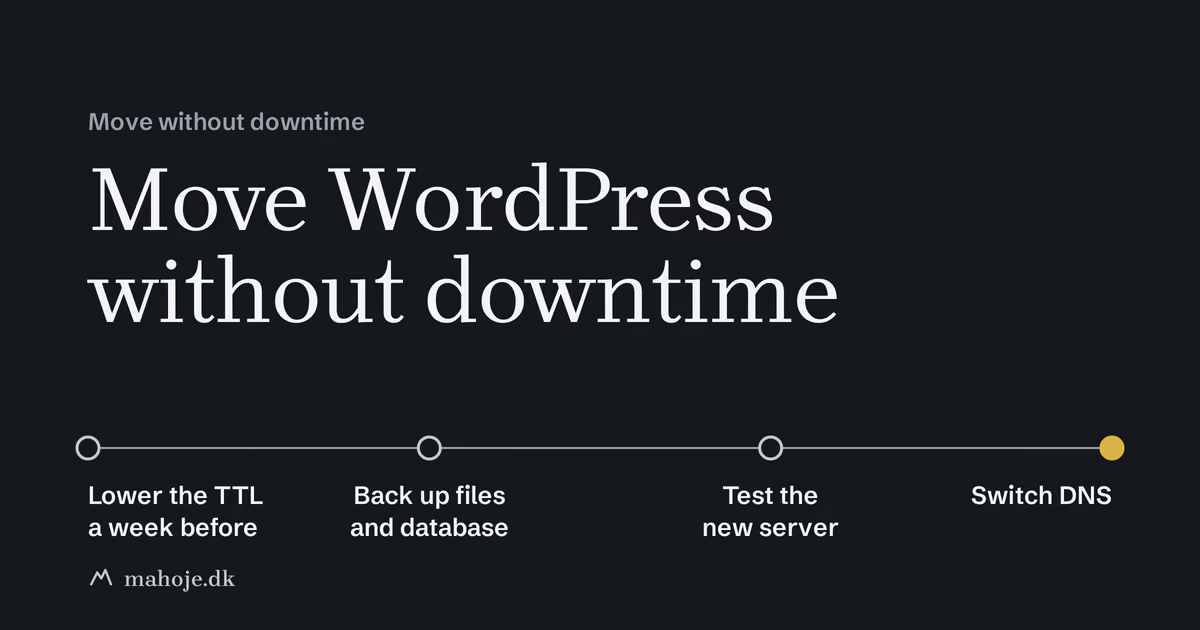
Moving a WordPress site sounds like something that takes a weekend and crossed fingers. It does not have to. When you move to a new host and keep the domain, you can do it so that visitors notice nothing. If you also change domain, there are a few more things to keep track of, but it is still a matter of order, not luck.
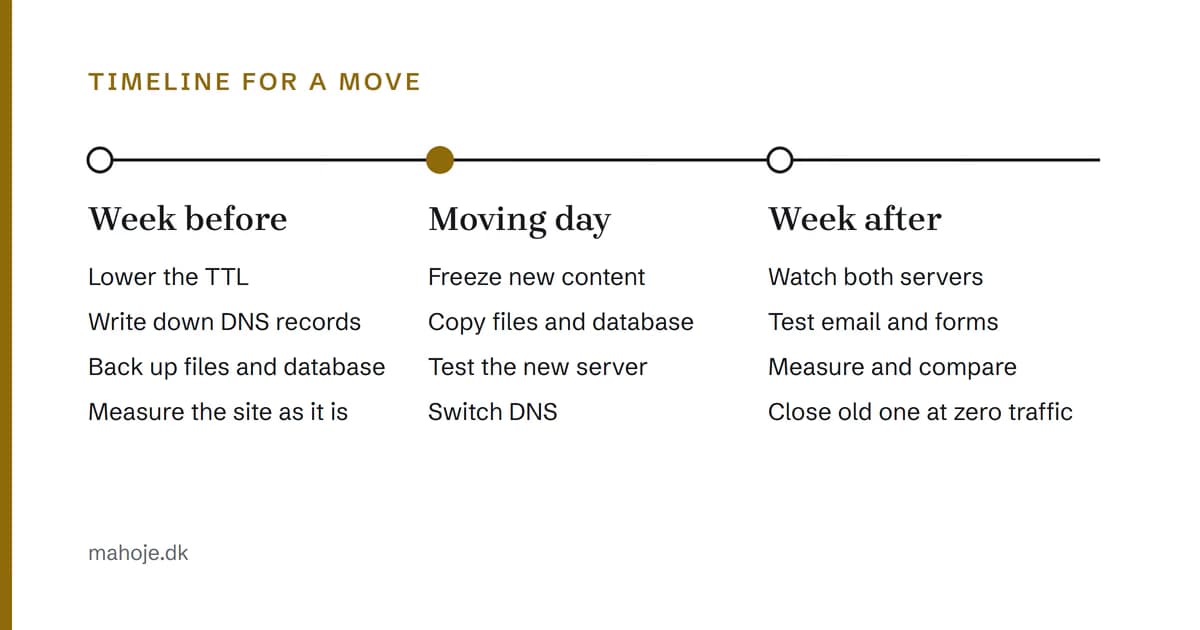
Here I go through the order I use myself: what you do the week before, on the day of the move and the week after. Every technical recommendation is linked to WordPress' and Google's own documentation, and the sources are collected at the bottom.
In short
- If you only change host and keep the domain, it can be done without downtime. The old server keeps running until all traffic has moved to the new one (Google Search Central).
- Lower the TTL on your DNS records at least a week before. Then the switch takes effect faster (Google Search Central).
- Back up both files and database. You need both to be able to restore the site (WordPress.org).
- Test the new server before you switch DNS. This is where most faults are caught.
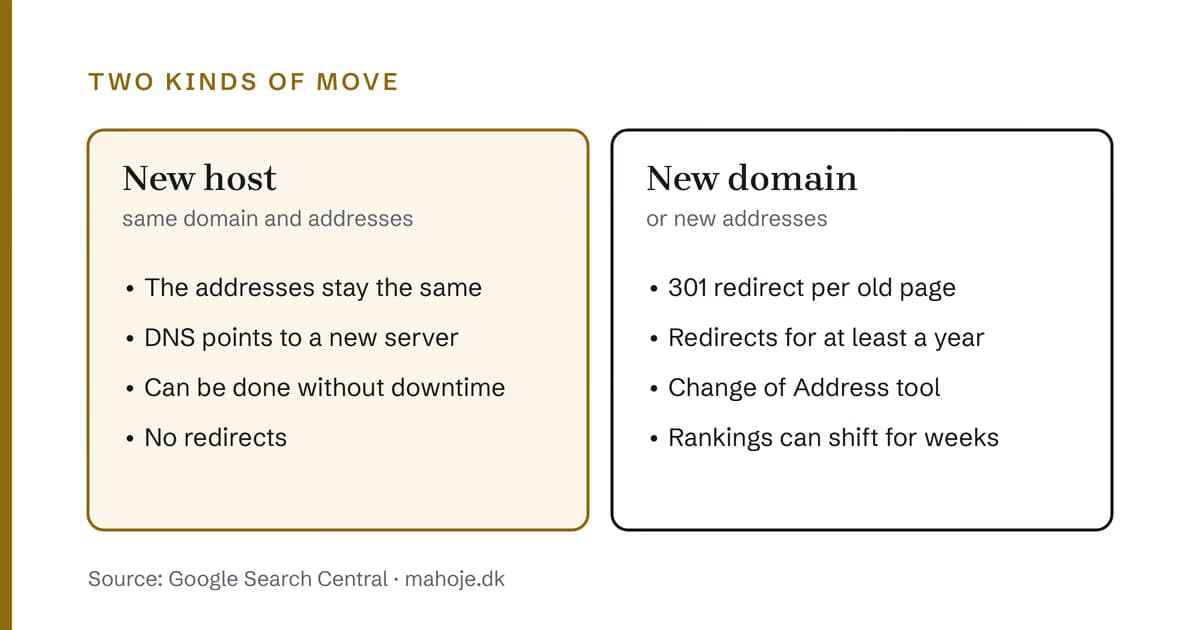
- If you change domain, every old address must forward to the new one with a permanent 301 redirect, and the redirects should stay in place for at least a year (Google Search Central).
- Do not forget email. If it is hosted with the old provider, the MX records have to be part of the plan.
Two kinds of move
The first question is whether the addresses on your site change. The answer decides how much work there is, and how big the risk is.
New host, same domain. The site is in the same place on the web for visitors and for Google. The only thing that changes is the server the domain points to. Google calls this changing your hosting and describes it as a move without URL changes (Google Search Central).
New domain or new addresses. If you change from, say, company.com to newcompany.com, or you change the structure of the addresses, Google has to learn that the content has moved. That happens through redirects, and Google writes that for a small or medium-sized site it typically takes a few weeks before most pages have moved in the search results (Google Search Central).
My advice is to keep the two things separate. If you need both a new host and a new domain, move the host first, and wait with the domain until the site runs stably in the new place. Then you know what the cause is if something misbehaves afterwards.
The week before: preparation
Most of the work happens before you touch anything on the live site.
Lower the TTL on your DNS records
TTL stands for time to live. It is a field on every DNS record that decides how long the record is cached around the internet, and thereby how long it takes before a change reaches your visitors (Cloudflare). A long TTL makes lookups faster, but also means a switch takes longer to take effect.
Google suggests lowering the TTL to a conservatively low value, for example a few hours, at least a week before the move (Google Search Central). The week is not arbitrary. The old, long TTL has to expire everywhere before the new short TTL applies. Where you change it depends on where your DNS is hosted: with the domain provider, with the old host or with a service such as Cloudflare.
Write down all DNS records
Before you move anything, take a copy of all records in your DNS. Not only the record that points to the website. It also includes:
- MX records, which are needed to deliver email to your mail server (Cloudflare).
- SPF and other TXT records, which state which servers are allowed to send email from your domain (Cloudflare).
- Verifications for, for example, Google Search Console and other services, stored as TXT records.
The most common surprise in a move is not the website but the email. If email is hosted with the old provider and you switch name servers to the new one, the MX records disappear unless someone sets them up again. If the email is to be moved as well, treat it as a separate project.
Take a backup you can restore
A WordPress site has two parts: the files and the database. WordPress' own documentation says that you need both to fully restore a typical site (WordPress.org). It also recommends keeping several copies in different places, for example one on the server, one in the cloud and one on your own computer.
A backup you have not tried restoring is a hope. If you do not have a fixed routine for it, I have written a guide to WordPress backups.
Measure the site as it is now
Run a measurement of the site before you move. Note the speed, whether SSL works and which pages are in Google. Then you have something to compare with afterwards. The free website check (in Danish) gives you speed, SEO, security and accessibility in one report, and you can run it again after the move.
List what writes to the database
If the site keeps receiving new data, such as WooCommerce orders, sign-ups or form messages stored in the database, you need to plan a window where nothing new comes in. Otherwise an order can land on the old server after the copy has been taken and be lost. On a pure brochure site it rarely matters. On a webshop it is the most important item on the list.
The day of the move
Copy files and database
The copying itself follows WordPress' guidance: back up files and database, move them to the new server, and edit wp-config.php if the database name, user or password is different in the new place (WordPress.org). Many hosts have their own migration tools, and there are plugins for it. The method matters less than knowing exactly what has been copied, and when.
If you keep the domain, the addresses in the database do not need to change. That is one of the reasons a plain change of host is so much less risky than a domain change.
Test before you switch DNS
This is the step that makes the difference. Before you point the domain over, open the site on the new server and click through it. You can do that by temporarily making your own computer look up the domain at the new server's IP address (via the computer's hosts file), or via a temporary address from the host.
As a minimum, I check:
- The home page and a couple of subpages, including one with images.
- The contact form: is the message sent, and does the email arrive?
- Logging in to WordPress.
- On a webshop: put an item in the basket, and go as far through checkout as you can without paying.
- Under Tools and Site Health in WordPress: are there critical issues? The screen shows, among other things, the PHP version, HTTPS and whether updates can run (WordPress.org).
If you find a fault here, it has no consequences. The live site is still running unchanged on the old server.
The SSL certificate
If the new host uses free certificates from Let's Encrypt, there is one thing to know. The HTTP-01 method can only be completed on port 80 of the server the domain points to (Let's Encrypt). In practice that means the certificate often cannot be issued until DNS points to the new server. Ask the new host how they handle it, so the site does not show a browser warning for the first few minutes. The alternative is the DNS-01 method, which verifies the domain through DNS and also works for servers that are not yet visible on the internet (Let's Encrypt).
Switch DNS, and keep both servers running
When the test is in order, you change the DNS record so the domain points to the new server. Because the TTL has been lowered, the change takes effect quickly, but not everywhere at once. For a while, some visitors reach the old server and others the new one. That is why the old site has to keep running, and why no new content may go into it until the switch has taken effect.
Google describes exactly this transition: keep an eye on the log files on both the old and the new server. Traffic falls on the old one and rises on the new one as the DNS change spreads (Google Search Central).
If you also change domain
A domain change needs three things on top of the move itself.
1. Correct the addresses in the database properly. WordPress stores the site's address in many places in the database. Some themes and widgets store values in a format where the length of the text is included. If you run an ordinary search and replace on the whole database, you can break those values (WordPress.org). Use a tool that understands the format. WP-CLI's search-replace handles it and has a --dry-run that shows what would be changed without saving anything (WordPress.org). WordPress' documentation itself gives the example wp search-replace 'example.dev' 'example.com' --skip-columns=guid, because the guid column should not be changed (WordPress.org).
2. Forward every old address with a 301 redirect. Google recommends permanent server-side redirects, such as 301 or 308, where possible (Google Search Central). Googlebot follows the redirect and uses it as a signal that the new address is the right one (Google Search Central). The important thing is that each page forwards to its own new page, not all of them to the home page. Make a list of the old addresses before you start. Your sitemap and Search Console are good places to get it.
3. Tell Google about the move. Search Console has a Change of Address tool, which is only used when you move from one domain or subdomain to another (Google Search Central). It requires that you are an owner of both the old and the new property in Search Console, and that the old home page forwards to the new one with a 301 redirect (Search Console Help).
Redirects should stay in place for a long time. Google writes as long as possible, generally at least a year (Google Search Central). The Change of Address tool forwards signals for 180 days, and Google asks you to keep redirects for at least as long, longer if the old addresses still get traffic (Search Console Help). That means you need to keep the old domain. Do not let it expire.
Expect rankings to fluctuate for a while. Google itself writes that this can happen with any major change, while the site is crawled and indexed again (Google Search Central).
The week after
The move is not finished when DNS has been switched. It is finished when you have seen that everything works and the old server is no longer used.
- Keep an eye on the old server. Google recommends only shutting down the old hosting once its traffic has reached zero (Google Search Central).
- Expect Google to visit a little less often at first. It is normal to see a temporary drop in how often Googlebot crawls the site right after a change of hosting, followed by a steady increase over the next few days (Google Search Central).
- Test email again. Send an email to yourself from outside, and send a message through the contact form. If the new server sends email from your domain, the SPF record has to allow it. Gmail requires everyone sending to Gmail addresses to have SPF or DKIM set up (Gmail Help).
- Measure the site again and compare with the measurement from before. If the site has become slower, it is worth finding out why while the old server still exists.
- Check Search Console for indexing errors and, after a domain change, that the old addresses forward correctly.
- Raise the TTL again when everything is stable.
When you should get help
Most people can move a small brochure site on an ordinary host themselves, using the host's tool and the list above. It is different when the site has a webshop with a steady stream of orders, the email is hosted in the same place, you are changing domain, or the site is built with a page builder and lots of plugins that nobody has an overview of any more.
Then it is worth having someone make a plan and handle the switch. I take on WordPress migrations as a fixed-scope job, so get in touch if you want help with one. And if you do not want to keep track of updates, backups and monitoring yourself afterwards, you can see my maintenance plans. Micro costs DKK 2,500 per month excluding VAT and covers updates, daily backup and round-the-clock uptime monitoring. All levels are on the pricing page.
If you first need to choose where the site should be hosted, I have written about how to choose WordPress hosting.
Frequently asked questions
Can you move a WordPress site with no downtime at all?
Yes, when you move to a new host and keep the domain. The old and the new server both run while the DNS change takes effect, so visitors reach one or the other. It requires that you do not change content during that period, and that you have lowered the TTL on your DNS records well in advance.
What is TTL, and why should it be lowered?
TTL is the field on a DNS record that controls how long it is cached around the internet. A long TTL means changes take longer to reach everyone. Google suggests lowering it to a few hours at least a week before the move.
Will I lose my ranking in Google when I move?
If you only change host and keep all addresses, Google typically sees a temporary drop in how often the site is crawled, followed by an increase over the next few days. If you change domain or addresses, rankings can fluctuate while Google works through the site again. You soften that with permanent 301 redirects from each old address to the new one.
How long should my redirects stay in place after a domain change?
Google recommends as long as possible, generally at least a year. If you use the Change of Address tool in Search Console, redirects should stay in place for at least 180 days, and longer if the old addresses still get traffic from Google.
Why does my email stop working when I move my website?
Because email is often hosted with the same provider, and the MX record in your DNS points there. If you change name servers or delete the old account without the MX records being set up correctly in the new place, email does not arrive. So go through all DNS records before you change anything.
Can I just search and replace the old domain in the database?
Not with an ordinary text replacement. WordPress stores some values in a format where the length of the text is included, and if you change the domain without correcting the length, they break. Use a tool that understands the format, such as WP-CLI's search-replace, and leave the guid column alone.
Sources
All sources read 2 October 2026.
- Google Search Central: Changing your hosting (a move without URL changes): developers.google.com
- Google Search Central: Site moves with URL changes: developers.google.com
- Google Search Central: Redirects and Google Search: developers.google.com
- Search Console Help: Change of Address tool: support.google.com
- WordPress.org: Migrating WordPress: developer.wordpress.org
- WordPress.org: Backups: developer.wordpress.org
- WordPress.org: wp search-replace (WP-CLI): developer.wordpress.org
- WordPress.org: Site Health screen: wordpress.org
- Cloudflare: Time to Live (TTL): developers.cloudflare.com
- Cloudflare: DNS record types: developers.cloudflare.com
- Let's Encrypt: Challenge Types: letsencrypt.org
- Gmail Help: Email sender guidelines: support.google.com