A short video often says more than a long email. That goes for showing a client how a new feature works, for a guide that shows where to click, and for an answer that would take too long to type. For years Loom has been the default tool for this. At the end of August 2026 I switched to Cap, and two months in, I think it is much better than Loom.
Cap is an open source screen recorder that does most of what Loom does, and a bit more. Here I go through what it does, what it costs compared to Loom, and what you need to know about licensing, data and self-hosting before you switch.
In short
- Cap records your screen, camera and microphone and shares the video with a link, or lets you edit it first (Cap).
- It is open source. The code is on GitHub under AGPLv3, and the project has around 24,000 stars (GitHub).
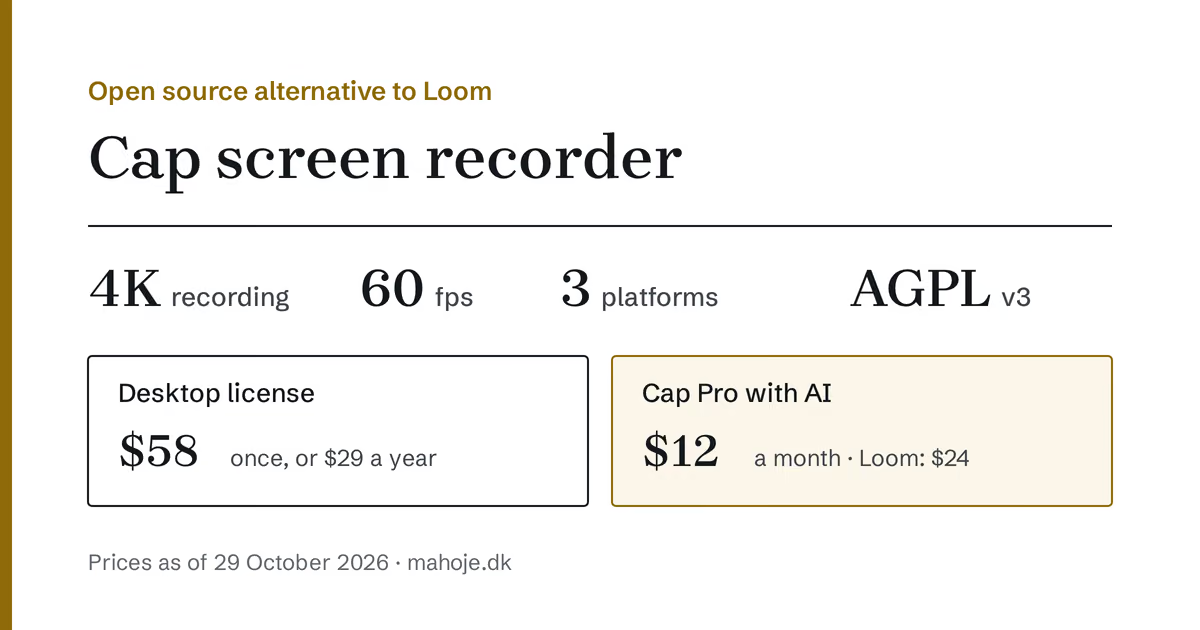
- Free is for personal use only. If you use Cap in a business, you need a desktop license at 58 dollars once or Cap Pro at 12 dollars a month (Cap).
- It is cheaper than Loom. Cap Pro with AI costs 12 dollars per user per month. Loom's plan with AI costs 24 dollars (Loom).
- You decide where the videos live. Cap Cloud, your own S3 bucket, Google Drive or your own server.
- New users get 20% off for 12 months through my affiliate link.
- Switching from Loom? Cap Pro can import your Loom videos (Cap).
What is Cap?
Cap is a screen recorder from the US company Cap Software, Inc. You start a recording with a hotkey or from the menu bar, choose whether the camera should be on, and press stop when you are done. There are three ways to record (Cap):
- Instant Mode uploads the video while you record. When you press stop, the link is already on your clipboard, so you can paste it into an email or a chat right away. This is the mode closest to Loom.
- Studio Mode records locally in up to 4K with screen, camera and microphone on separate tracks. Afterwards you can edit in the built-in editor with automatic zoom, backgrounds, blur and captions, and export in 4K at 60 frames per second.
- Screenshot Mode captures a window or an area, which you can give a background and annotations before it goes to your clipboard.
Viewers do not need an account. On the share page they can leave comments at a specific point in the video, react with emojis and read the transcript.
Cap runs on Mac (macOS 13.1 or later), Windows 10 or later and Linux, and there is also a Chrome extension. For people working with AI agents, Cap has a command line tool and an MCP server, so an AI assistant can work with your recordings.
How much does Cap cost?
Cap has four plans as of 29 October 2026 (Cap):
| Plan | Price | What you get |
|---|---|---|
| Free | 0 dollars | Studio Mode with editor and export. Shared links up to 5 minutes. Personal use only. |
| Desktop license | 29 dollars a year or 58 dollars once | Commercial use for one user, unlimited local recording and 20 shared links a month of up to 5 minutes. |
| Cap Pro | 12 dollars per user per month, 8.16 dollars billed annually | Unlimited links and storage, AI titles, summaries, chapters and transcripts, custom domain, password-protected videos, analytics, Loom import and your own S3 bucket. |
| Enterprise | Cap Pro plus add-ons | For example SAML SSO at 199 dollars a month for the whole organisation. |
Note what "commercial use" means at Cap. It is not only videos for clients. According to Cap's license terms it also covers product videos and demos for your employer and videos for internal communication between colleagues (Cap). So if you use Cap at work, the free plan is not an option.
Cap compared to Loom
As of 29 October 2026 Loom costs (Loom):
- Starter is free with at most 25 videos per person, 5 minute recordings and video up to 720p.
- Business costs 18 dollars per user per month.
- Business + AI costs 24 dollars per user per month and adds AI editing and automatic meeting notes, among other things.
The equivalent of Loom Business + AI is Cap Pro at 12 dollars. And if you do not need AI or unlimited links, the desktop license at 58 dollars once is far cheaper than a subscription.
How I use Cap
I have used Cap since the end of August, and I use it for three things.
Product videos. When I have built a new feature for a client or in one of my own products, I record a short video showing how it works. It is faster than writing a long explanation, and the client can watch it when it suits them.
Guides. When someone needs to learn to do something themselves, such as editing a page in WordPress, I make a video they can watch again and again. Here I use Studio Mode, so I can cut and zoom in where it matters.
Meetings, now and then. Sometimes I record a meeting or a walkthrough, so people who could not attend can watch it afterwards. Everyone needs to know they are being recorded. I have written more about the rules for recording meetings in my post about Pocket.
Right now I am on Cap's paid plan. At the same time I am setting Cap up on my own server, so the videos can live with me.
Self-hosting: Cap on your own server
What really sets Cap apart from Loom is that you can run the whole thing yourself. Cap's documentation describes three routes (Cap docs):
- Docker Compose on your own server. The setup consists of Cap's web app, a media server with FFmpeg, a MySQL database and MinIO for storing the videos.
- Railway with one click.
- Coolify, for which Cap has a ready-made Compose file.
A few things are worth knowing before you start:
- Change every secret key. The default file contains placeholders that are public in the repository. Replace them before the server goes online.
- Email and AI need your own keys. Without email set up, login codes end up in the server log. Transcription needs an AssemblyAI key, and titles and summaries need a key for OpenAI, Anthropic, Groq or another OpenAI-compatible service.
- You run it yourself. Cap does not offer direct support for self-hosted installations, so backups of the database and videos are your responsibility.
The desktop app that Cap publishes still needs a license for commercial use, even when the videos live on your own server (Cap).
GDPR: where do the videos end up?
When you record your screen, personal data quickly comes along: a client's name in an email, a CRM in the background or colleagues' faces in a meeting. That is why it is worth knowing where the videos end up.
Cap Software is a US company. Cap's data processing agreement is written to meet GDPR Article 28, and transfers from the EU rely on the EU Standard Contractual Clauses. The agreement also says data may be processed in the US and other places where Cap and its subprocessors operate. The list of subprocessors is in Cap's trust portal, which may require you to request access (Cap). Cap states that it is SOC 2 Type II and ISO 27001 certified.
If you want to be sure the videos stay in the EU, you have two options: use your own S3 bucket in an EU region with Cap Pro, or self-host Cap. If you use the AI features, audio and text are still sent to the AI services that produce transcripts and summaries.
Who is Cap for?
Cap makes the most sense if you often need to show something on screen: the consultant handing over work to clients, the support team answering with a video instead of a long email, or the business making guides for its customers. If you already pay for Loom, Cap Pro is the same thing at half the price.
It is also a good choice if you want to control your own data, either with your own storage or your own server.
If you use Microsoft Teams or Google Workspace and mostly record meetings, the recording feature you already have may be enough. Then the videos stay in the system you already have an agreement with.
How to get started
- Download Cap from cap.so through my link, and try the free version privately. If you buy through the link, you get 20% off for 12 months.
- Buy a license before you use it at work. The desktop license is enough if you mostly record and share a few videos. Choose Cap Pro if you want unlimited links and AI.
- Switching from Loom? Use the Loom import in Cap Pro. Cap also has its own discount code, MIGRATE20, for people switching from Loom.
- Decide where the videos should live: in Cap Cloud, your own S3 bucket or on your own server.
- Say so before you record a meeting with others.
Where I come in
A tool is quickly chosen. What takes time is deciding where data should live, getting data processing agreements in place and making the tools work together. That is the kind of work I do as a technical partner for smaller businesses. And if you want help setting up Cap on your own server, you can write to me.
Frequently asked questions
What is Cap?
Cap is an open source screen recorder from Cap Software, Inc. You can record your screen, camera and microphone, share a video with a link straight away or edit it in a built-in editor. It runs on Mac, Windows and Linux, and the code is on GitHub under AGPLv3.
Is Cap free?
The free version is for personal use only, and shared links can be at most 5 minutes long. If you use Cap in a business, including for internal communication, you need a desktop license at 29 dollars a year or 58 dollars once, or Cap Pro at 12 dollars per user per month.
What is the difference between Cap and Loom?
Both record your screen and share the video with a link. Cap is open source, can store videos in your own S3 bucket or on your own server and also works offline. Cap Pro with AI titles, summaries and transcripts costs 12 dollars a month. Loom's plan with AI costs 24 dollars per user per month.
Can I move my videos from Loom to Cap?
Yes. Cap Pro has a tool that imports your Loom videos. Cap also offers 20% off with the code MIGRATE20 if you switch from Loom.
Can I self-host Cap?
Yes. Cap can run on your own server with Docker Compose, and there are ready-made setups for Railway and Coolify. Login emails and AI features need your own API keys, and Cap does not offer support for self-hosted installations.
Where are my videos stored?
By default in Cap Cloud. Cap is a US company, and its data processing agreement says data may be processed in the US, with the EU Standard Contractual Clauses as the legal basis. With Cap Pro you can store videos in your own S3 bucket instead, for example in the EU, or self-host Cap entirely.
Sources
The sources were read on 29 October 2026. Prices and plans may change, so check Cap's site before you buy.
- Cap: Homepage with features and platforms: cap.so
- Cap: Pricing and plans: cap.so/pricing
- Cap: Commercial license: cap.so/docs/commercial-license
- Cap: Self-hosting: cap.so/docs/self-hosting
- Cap: Data processing agreement: cap.so/dpa
- Cap on GitHub: github.com/CapSoftware/Cap
- Loom: Pricing: loom.com/pricing